
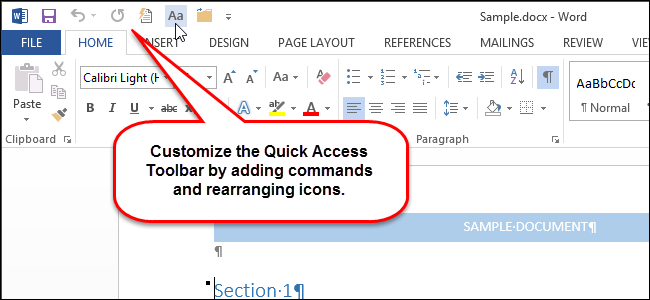
The ribbon in Microsoft Office applications provides access to most major commands and options, but there is another feature that can be very useful if you take the time to customize it. The Quick Access Toolbar provides one-click access to any commands added to it.
To customize the Quick Access Toolbar in a Microsoft Office application such as Word, click the down arrow on the right side of the Quick Access Toolbar and select “More Commands” from the drop-down menu.

NOTE: You can also right-click on an empty spot on the ribbon and select “Customize Quick Access Toolbar” from the popup menu.

By default, the most “Popular Commands” are displayed in the list of commands under the “Choose commands from” drop-down list. However, you can scroll through “All Commands” or “Commands Not in the Ribbon” or select a specific tab if you know on which tab the command is located. For this example we will add the command to open the AutoFormat dialog box, so we select “Commands Not in the Ribbon” from the “Choose commands from” drop-down list.

Scroll down until you find the command you want to add, select the command, and click “Add.”

You can also rearrange the order of the commands on the Quick Access Toolbar. To move a command, select the command in the right list and click the “Move Up” button or the “Move Down” button to move it to another location in the list.

Once you’ve added the commands you want and arranged the order of the commands, click “OK” to accept your changes and close the “Word Options” dialog box.

The command is now available on the Quick Access Toolbar for one-click access.

You can also customize the Quick Access Toolbar in Excel, PowerPoint, Outlook, and Access, the same way.