How-To Geek
How to Make Your Computer Press a Key Every X Seconds
Have you ever needed to press a key every couple of seconds, or every few minutes? Perhaps you’re playing a video game and you’re waiting for an item, or you’ve got some other reason. Either way, here’s how to make your PC do it automatically.
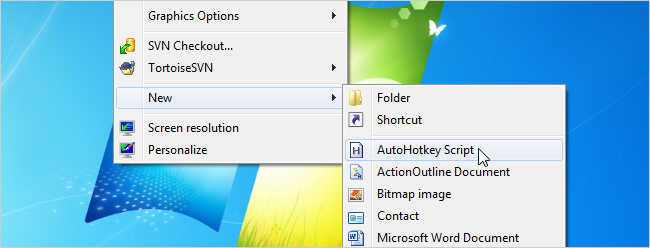
You’ll need to start by downloading and installing AutoHotkey, which is a simple scripting language that allows you to create easy scripts. Once you do that, right-click anywhere and choose New –> AutoHotkey Script.
Once you’ve done that, paste the following into the script:
#Persistent
SetTimer, PressTheKey, 1800000
ReturnPressTheKey:
Send, {Space}
Return
This simple script will wait every 30 minutes and press the Spacebar. You can adjust the 1800000 number above to the amount of milliseconds required. So, for example, if you wanted it to run every 2 minutes, you’d use 60 seconds * 2 minutes * 1000 milliseconds = 120000 total milliseconds.

Save the file name as whatever you’d like, and then double-click on it to run it.
You can also send another hotkey or any number of characters just by changing the Send, {Space} line to something else—you can literally type out some letters you want to send, or you can use some of the special keys on the AutoHotkey documentation page. For example, to make it send the word “lazy” and then press the Space bar, you could use:
Send,lazy{Space}
I’m not entirely certain what you’ll want to use this for, but that’s what makes scripting so much fun.
Got Feedback? Join the discussion at discuss.howtogeek.com
Comments (16)
Programmer by day, geek by night, The Geek, also known as Lowell Heddings, spends all his free time bringing you fresh geekery on a daily basis. You can follow him on Google+ if you'd like.
- Published 11/16/11


Desmond could had done with a modified version this script in Lost
@Richard: yeah, that’s true.
hehe. It’s not like he didn’t have the spare time to Google that.
You could also loop it until a certain number of executions has been reached…
Loop,
{
if (A_Index >= 100)
break
Send, {space}
Sleep, 1800000
}
ExitApp
Can this script be modified so that a string of characters will be entered when a function key is pressed?
Or would that be an entirely different feature?
This would be even more useful if the script could send the keypress to a specific window – is AutoHotKey capable of doing that? For example if I’ve logged in to a remote computer but am doing stuff in a different window, can I stop that remote computer disconnecting due to inactivity by sending a keypress to that background window?
It could be used to defeat automatic screen saver lock policies some companies have. My computer goes to screen saver mode after 15 minutes of inactivity, and I have to type my password to get back. This tip would get around that.
There are also some Old School small prgs like Stay Alive going back to AOL days and when some free ISPs would log off user if no activity on line after some period of time like 2 hours. Royal pain if trying a long overnight d/l or u/l to bbs sites for ‘credits’. Rem that?
Such might still work for defeating mentioned 15 minutes on job machine.
.
Hell yeah remember the ISP connection time outs and surfing ye Ole BBS’s! On my C64 no less! LOL.
Where do you go to download the program? (Sorry if thats a stupid question. There is probably a url right in front of my eyes.) I see the url to the autohotkey documentation page, but no option to download. Please help.
See? there was one lol. I was just looking in the wrong place. Thanks anyways ^^’
for games and other uses I like my toggle script
it spams click after I press z then hold mouse and if I want to use my mouse again without exiting the script I can press z again.
z::Toggle := Toggle<1 ? 1 : 0
~$*Lbutton::
If Toggle = 1
Loop
{
GetKeyState, Lbvar, LButton, P
If Lbvar = U
Break
Click
sleep 100
}
Else
return
@psr
just do this:
#Persistent
SetTimer, PressTheKey, 1800000
Return
PressTheKey:
Send, {Space}
Return
F2::Send omg how you do that?
simple, and all I had to do is add one line.
would this work at a command prompt?
Wouldn’t the tiny app: “Caffeine” do the same thing?