
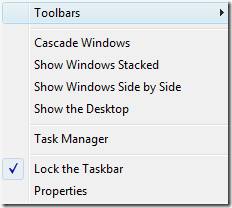
Here is a quick and handy tip to add a toolbar to any directory in Windows on the taskbar. Right click an open area on the Taskbar and go to Toolbars and click on New Toolbar.

The New Toolbar dialog box opens up where you can browse to the directory or folder you want to crate a toolbar for. Once you have the specified directory click on Select Folder.

That is all there is to it! Now you will have the toolbar on the Taskbar. Because I went to a main directory I can click on the double arrow above the toolbar to create a list of sub directories within that folder.
