
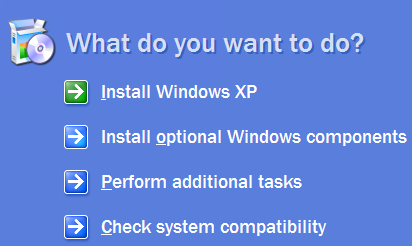
In part one of this tutorial we stored our files and settings on a network drive. Now let me show you how to transfer them to your new computer. To verify we are using the same version of migwiz.exe put your XP disc into the drive and it should auto launch. Choose "Perform additional tasks". Next choose Transfer files and settings.

The Files and Settings Transfer Wizard (FAST) will launch. Click Next.

Leave the default selection of "New Computer" Then click Next.

Since we put the FAST image up on the network we can select "I don't need the Wizard Disk..." Then Next.

Point the FAST Wizard to the network location or removable media where your USMT2.UNC image is stored and hit Next.

Now your files and settings will be installed on your new computer. After the transfer has completed click Next.

Sometimes files will not transfer with FAST so you need to transfer a file or two manually which this image shows. Everything else transferred that I selected. So from here just click on Finish.

Finally you will be asked to reboot. After rebooting your all done!
