How-To Geek
Quick Tip: Create Folders and Subfolders in Bulk Using a Text File
Anyone who has needed to create a large number of folders in Windows knows this is a tedious task. Simplify your creation by typing a list of the folder names in a text document, and get a program to do all the manual work.
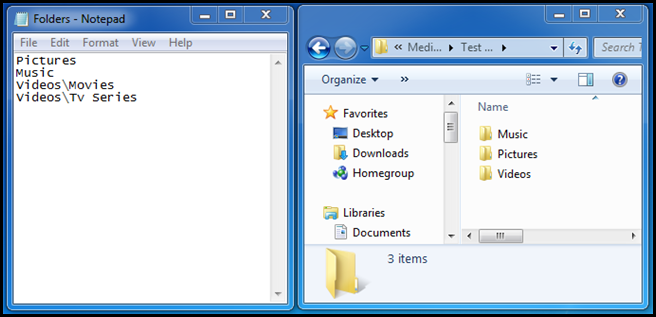
The first thing you need to do is type a list of the folders you want to create in a plain text document. You should put every new folder on a new line. If you want to create sub-folders just put a “\” after the parent folder and type the name of the subfolder. Save this anywhere on your PC just make sure you remember where you save it.


Now head over the the developers website, and grab yourself a free copy of Text 2 Folders. Once the portable application has downloaded unzip the file and run it.


Click the top browse button, the one on the root folder row, and browse for a folder that you want your folder structure to be created under. Now hit the second browse button and locate the text file we created earlier.


Click create folders and that’s all there is to it.


Got Feedback? Join the discussion at discuss.howtogeek.com
Comments (14)
Taylor Gibb is a Microsoft MVP and all round geek, he loves everything from Windows 8 to Windows Server 2012 and even C# and PowerShell. You can also follow him on Google+
- Published 10/21/11


Lovw it, When I deploy machines I have to make a folder structure on each one. What a finger saver this is.
The same can be achieved by the FOR command from the command prompt.
FOR /F “delims=” %i in (folders.txt) do md %i
Where folders.txt may contain:
“Test Folder”
“Test Folder\Pictures”
“Test Folder\Music”
“Test Folder\Videos\Movies”
“Test Folder\Videos\TV series”
Batch file solution is much better.
@BuLL
How about “mkdir”?
mkdir
mkdir
mkdir \
Put that in a text file, rename to .bat, put the file where you want to create the folders, and run.
Text2Folders looks much more user friendly for those who don’t use the command prompt every day.
Damn, looks like HTG’s comments know HTML.
That should read something like
mkdir videos
mkdir pictures
mkdir videos\movies
and so on.
mkdir in batch files can do the same job. Just my 2 cents
The For command that bull is talking about uses the MD command which is an alias for mkdir. Basically mkdir and md are the same thing put in simple terms
This tip is helpful for anyone who is not familiar with the command-line. Otherwise, assuming the text file with the directories to be created already exists, under any version of Windows that supports PowerShell, this can be easily done from the CLI:
PS C:\Users\Administrator\Desktop> gc .\filelist.txt | % { New-Item -Path $_ -ItemType Directory }
Directory: C:\Users\Administrator\Desktop
Mode LastWriteTime Length Name
—- ————- —— —-
d—- 10/21/2011 12:01 PM Dir1
d—- 10/21/2011 12:01 PM Dir2
d—- 10/21/2011 12:01 PM Dir3
A correction in BuLL’s comment:
For cmd prompt the variable only needs one “%”, for batch scripts it needs two of them.
FOR /F “delims=;” %%A IN (folders.txt) DO (md “%%A”)
file .txt with folders name “folders.txt”:
Test Folder
Test Folder\Pictures
Test Folder\Music
Test Folder\Videos
Test Folder\Videos\TV series
props
Interesting that a program does little more than add “MD” to the beginning of each line and launch it as a BAT file in the assigned directory. In the time it takes to learn how to run that program you can learn how to start to use batch files. Even though they are a throw-back to the old DOS days, they are still very powerful things. I record our chorus rehearsals every week and use a batch file on the files on my recorder. It moves the files, renames them, adds add’l file info (title, artist, date, etc), then zips them to an appropriate name. All I have to do is tweak a couple of lines in the batch file each time. 5 minutes and I’m done what used to take at least an hour and had no guarantee of consistency. My advice… learn a little about batch files instead.
ASAP Utilities has a nice folder function also.
Please Help, Newbie- isn’t this similiar to creating a folders, text document, etc. etc. in My Documents, only this here is more compact and also you can hide these folders by renaming them something different?
Pressing a button instead of having to type it out not only saves time, but cuts down on rework. Plus, anyone kind enough to go through the effort of creating a tool, large or small, first project maybe or not, and then simply sharing it with others without asking for anything in return gets my vote. Also, the author of the app can add to it as he so desires to give it even more flexibility in one package, maybe we are witnessing the start of another great app, like notepad++, and support of these people and they’re efforts not only give us some of the best tools out there, which ARE free, but is also a component in keeping sites like this interesting and the go to spot for new innovations and ideas.
How can I make a folder with a name that contains a space, using the “mkdir” method?