
Quick Links
So you want to launch a program with parameters, but you prefer to pin programs to the taskbar rather than have shortcuts everywhere? Read on to find out how you can achieve this in a few seconds.
In our example we will use Google Chrome with the incognito switch, but this trick will work with any program that supports launch switches. Please also note that the switches will be different for every program.
Note: many of our more geeky readers will already know how to do this. Please be kind to the beginners in the comments.
Pinning Custom Apps to the Taskbar
First you are going to need to create a shortcut to the program you want to pin. To do that open up the start menu and find the program you want to pin, once you have located it, right click and select Send to. Now choose to create a shortcut on the desktop.

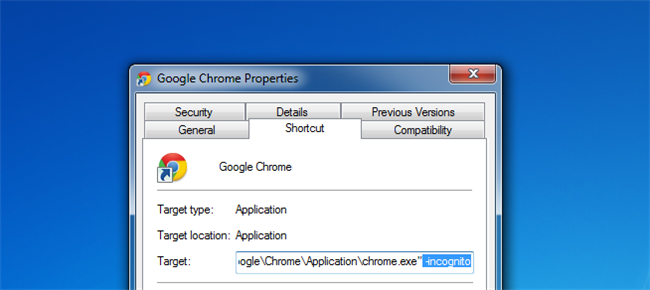
Once the shortcut has been created on the desktop, we need to edit its launch parameters. To do this right click on the shortcut and choose properties.

Once the properties dialog opens, we need to append the parameters to the target field, by that we mean that the file the shortcut is pointing to will be enclosed in inverted commas, you need to append your parameters after the closing inverted comma. Since we want Chrome to launch in incognito mode we will append the –incognito parameter.
Note: Some switches will have a “-“ prefix, while some programs will use a “/” prefix before the parameter. So be careful to hit up Google and check how your program formats its parameters.

Once you have added your parameters. You can simply pin the icon to the taskbar as you normally would, by right clicking on the shortcut and selecting Pin to Taskbar, from the context menu.

Now you can delete the shortcut from your desktop.

When you launch the program from the taskbar it will still launch with with the parameters.
