How-To Geek
How to Manually Force Google Chrome to Update Extensions

Google Chrome normally updates your extensions automatically, but when you see the news about a new extension version, you want it right now. Here’s how to force Chrome to upgrade all your extensions without reloading.
Forcing Chrome to Update Extensions Now
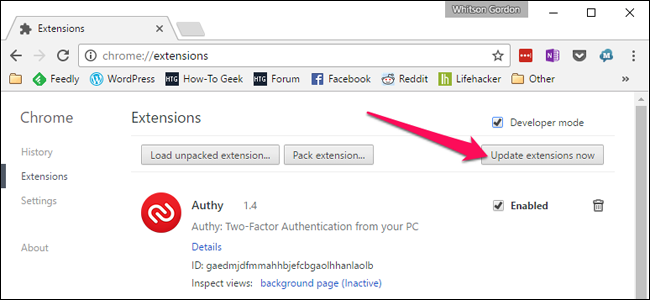
Head to chrome://extensions by either right-clicking on an extension and choosing Manage extensions, or just typing it into the location bar. Once there, click the Developer mode link on the right-hand side.


And then click the Update extensions now button.


That’s pretty much all there is to it. Note that you’ll likely have to reload any tabs that you want to use a new extension version on.
Got Feedback? Join the discussion at discuss.howtogeek.com
Comments (4)
Programmer by day, geek by night, The Geek, also known as Lowell Heddings, spends all his free time bringing you fresh geekery on a daily basis. You can follow him on Google+ if you'd like.
- Published 05/24/11


Thanks.
staples easy button anyone?
See also: “Secbrowsing – plugin version checker” (by Google)
Periodically checks if your browser is running any out-of-date, vulnerable plugins (e.g., Java, Flash) and notifies you if you do… supports multiple operating systems; toolbar icon does not appear if your plugins are up-to-date.
Thanks for the help, really simple once you know what your doing. You do a great job of breaking it down so anyone can understand it also.