
Quick Links
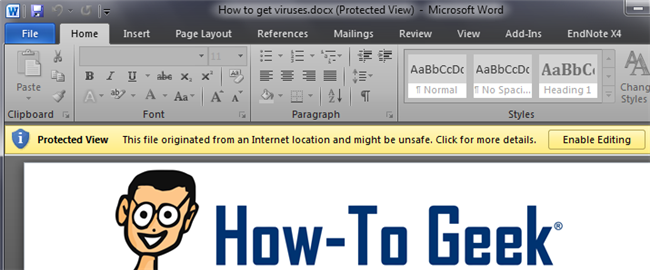
Protected View can stop viruses from installing onto your computer but comes at the price of clicking a button every time you want to edit a document. Here's how to permanently disable Protected View for all documents in Microsoft Office.
Microsoft added many usability and security features to Office 2010 that help protect end users from embedded plugins and viruses that can crash Office or even install viruses. These features go a long way to keep your computer running smoothly, but there are still options you can tweak to disable Protected View for specific files. To fine tune your Protected View options have a look below.
Disable Protected View for Specific Documents
To get to the protected view options, open Microsoft Word 2010 and then go to file and options.

On the left column click Trust Center and then click Trust Center Settings.

Now on the left column click Protected View and uncheck any documents you would like to open automatically with Protected View disabled. This will allow you to edit the documents without needing to enable editing but may also make your computer an easy target for zero day virus exploits.

Once you check or un-check the settings you want you can close the windows. Repeat these steps for Microsoft Excel and Powerpoint if you want to disable Protected View there too.
Modify Safe Locations
To add more locations that are marked as safe for Protected View go back to the Trust Center Settings and click Trusted locations on the left.

Click add new locations at the bottom and browse to the location you would like to add to the trusted locations list.

Any documents in the new location will now be marked as safe.
Disable Protected View from Registry
Like most options in Windows there is a way to disable these settings via the registry too. If for some reason the options in Office do not work or you want to be able to automate this setting for multiple computers you can try setting one or more of these registry values below.
HKCU\Software\Microsoft\Office\14.0\Word\Security\ProtectedView
HKCU\Software\Microsoft\Office\14.0\Excel\Security\ProtectedView
HKCU\Software\Microsoft\Office\14.0\PowerPoint\Security\ProtectedView
The three values you would want to set are:
DisableAttachementsInPV
DisableInternetFilesInPV
DisableUnsafeLocationsInPV
By setting each value to 1 you will disable Protected View for that file location.