
Multitasking on the command-line can be really confusing for beginners who use Screen. Using Byobu puts a host of system stats available at a glance while making it easy for newbies to work without memorizing hard-to-remember keybindings.
GNU Screen is a godsend for most people who are working in terminal. It allows you to spawn multiple instances and let's you disconnect from them and return to them later. It's also pretty notorious for having a high learning curve. Enter Byobu.
Screen vs Byobu
Byobu is an enhancement that connects to and uses Screen, but offers useful statistics and easy-to-use hotkeys for the basic commands. For reference, here's Screen:

GNU Screen by default doesn't give you anything to find your bearing, but by editing the .screenrc file, you can add a "hardstatus" line like in the above screenshot. You can see the machine name in the bottom left, and some date and time on the bottom right. The middle shows you how many shells are open and which is active.
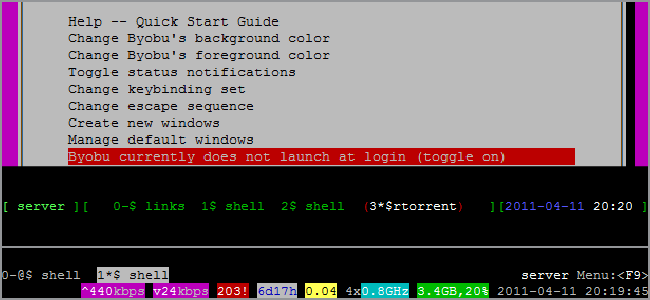
On the other hand, here's the default Byobu screen:

And yes, that's the default. You'll see the open shells and a host of other stats, such as uptime, core clock speed, CPU load, memory use, network speeds, packages in need of updating, and so on. You can change the colors you want and the options you like, too.
Installation and Customization
In order to use Byobu, you also need to install Screen. We can use a simple terminal command to install both.
sudo apt-get install screen byobu
Enter your password and hit "y" if prompted for confirmation. Next, it's time for easy customization.
You launch Byobu by just typing it into the command line.
byobu
If you want to use options for Screen, you can just plug them in and it'll pass them along. Here, we'll use the --S (capital 'S') option to give the session a title.
byobu --S session_title
You can also resume sessions by using the --r flag.
byobu --r
Or you can resume by name:
byobu --r session_title
You'll see the default screen. To begin customizing, hit the F9 key.

Jump down to "Toggle status notifications" to change what shows up at the bottom.

You can also make Byobu launch by default whenever you connect/login.

You can also change the background and foreground colors if you like.
Hotkeys
You can use all of Screen's default hotkeys without a second glance. However, Byobu has easier keybindings that utilize the function keys:
- F2: Create a new window
- F3: Move to previous window
- F4: Move to next window
- F5: Reload profile
- F6: Detach from this session
- F7: Enter copy/scrollback mode
- F8: Re-title a window
- F9: Configuration Menu, can also be summoned by Ctrl+a, Ctrl+@
As you can see, this is much easier than using Screen's Ctrl+a,Ctrl sequences. If you prefer Screen's keybinding set or if they interfere with another program (like Midnight Commander), then you can switch from using the function keys to Screen-style keys in the menu, or hit by hitting the following key sequence:
Ctrl+a, ctrl+!

PuTTY
If you're using PuTTY or KiTTY, then there's just one last step you'll need to take. The F keys may not work properly at first, but it's an easy fix.

Under the Keyboard options, you'll have to change the Function keypad settings to "Xterm R6." Now you're set to enjoy Byobu via SSH!