How-To Geek
How Do I Disable the User Account Control Prompt in Windows 8?
If you frequently use applications that prompt you to engage administrative privileges, it can put a kink in your workflow. Is it possible to disable the administrative nagging in Windows 8?
Today’s Question & Answer session comes to us courtesy of SuperUser—a subdivision of Stack Exchange, a community-driven grouping of Q&A web sites.
The Question
SuperUser reader Arnold Zokas just wants that annoying prompt to vanish, he writes:
I am using Windows 8 Enterprise on my development machine. Most of the time, I need full administrator for debugging, changing system files, etc.
In Windows 7, setting UAC to “never notify” would disable any administrator prompts. In Windows 8 this is no longer the case. Even with UAC disabled I get prompted to grant programs elevated privileges.
Is there a way disable this behavior?
Note: I am fully aware of the repercussions. I have antivirus, firewall, etc and am generally quite careful about what I download or install on my machine.
If you’re not as up-to-speed on what the whole elevated priviledges/User Account Control functionality is all about, we’d strongly recommend you check out our treatment of the topic here: HTG Explains: Why You Shouldn’t Disable UAC.
The Answer
SuperUser contributor Hornbech offers up a quick, easy, and straight to the point answer:
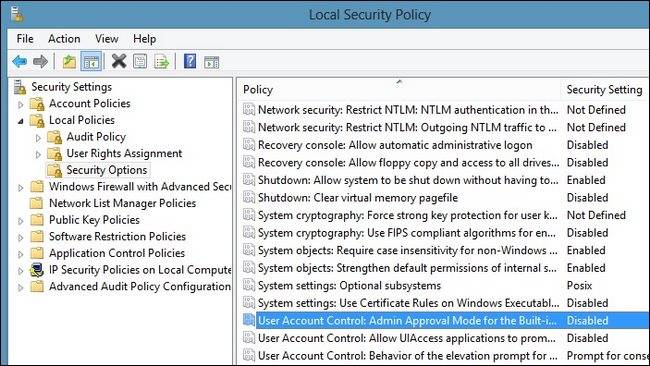
If you go to Administrative Tools → Local Security Policy, find Local Policies and Security Options, in the left side of the window, and scroll down to the bottom. [Seen in the screenshot above.]
You should be able to disable User Account Control completely.
As long as you understand the risk in completely disabling it, this technique is a one-stop fix for banishing the administrative prompt forever.
Have something to add to the explanation? Sound off in the the comments. Want to read more answers from other tech-savvy Stack Exchange users? Check out the full discussion thread here.
Got Feedback? Join the discussion at discuss.howtogeek.com
Comments (11)
Jason Fitzpatrick is warranty-voiding DIYer and all around geek. When he's not documenting mods and hacks he's doing his best to make sure a generation of college students graduate knowing they should put their pants on one leg at a time and go on to greatness, just like Bruce Dickinson. You can follow him on Google+ if you'd like.
- Published 01/31/13


Or you could just as easily search for “UAC” in settings, then click the only result, then drag the slider to the bottom.
I’m not linux trolling but after using linux along with windows the last 5 years, security prompts aren’t as bad as they once were. but i see the point in being annoyed by the same prompt over and over for the exact same task. in linux it would be nice to just click a button instead of typing out a password every time. but, the way i see it, uac is doing what it was meant to do for security reasons.
@ Aether that’s what I would do, also.
@Aether and @ten0tarded Although you could do that and not be adversely affected with desktop applications, to use the Metro applications in Windows 8, at the very least, the lowest UAC setting must be enabled.
@Cody That’s not true. I’m using Windows 8 now and disabled UAC through the Control Panel slider like I always have and am still able to use Metro Apps just as well as I could with it on.
The UAC control panel slider at the bottom setting does not turn of UAC completely as did Windows 7.
@Aether Have you restarted since doing so? Every time I disable it and restart, the Metro applications do not open. See Google: http://tinyurl.com/alopxtu
@streetwolf This is true. The UAC control panel does not disable UAC entirely in Windows 8. It must be disabled through registry or Group Policy Editor. When it is disabled, all Metro Apps will not run, as they are all sandboxed through the UAC security policies.
yb i never knew that, interesting…
I see a need for the UAC but there are those applications I run all the time that I wish didn’t keep asking me for the ADMIN password.
There’s got to be a better way, other than having UAC in all future versions of Windows.
It can be disabled in the same way of Windows 7