
Quick Links
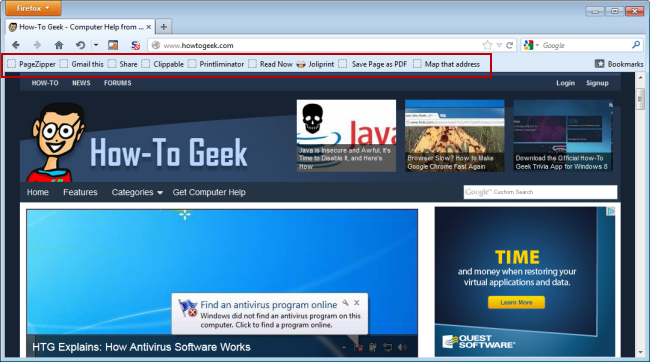
Bookmarklets are JavaScript links you can place on your browser's toolbar that add one-click functionality to the browser or webpage. They are free and help make repetitive tasks in your browser quicker and easier to perform.
Use bookmarklets to add functionality to your browser, such as modifying the appearance of a webpage, extracting data from a webpage, and search for highlighted text in a search engine or online encyclopedia.
We've collected some links to useful bookmarklets here to enhance your browsing experience.
Force Password Save
We've previously showed you how to use LastPass to store and use your online usernames and passwords, but, you may be concerned about the security of storing your private information in the cloud. We've also showed you how to make your LastPass account even more secure. However, you may still want to store your passwords locally. If you would rather store your passwords in your browser's built in password manager, the Force Password Save bookmarklet can help force your browser to save passwords even on sites that do not allow you to do this.

PageZipper
Many sites split up their articles into smaller chunks with "next" links to generate pageviews. However, this can be very annoying and distracting when you're trying to read the article. The PageZipper bookmarklet allows you to view multi-page articles on one page so all you have to do is scroll through an article to read it.

Bitly Bitmarklet
If you share a lot of URLs, the Bitly bitmarklet will save you time and hassle when creating shortened URLs. You don't have to go to the Bitly site to create a shortened URL for the website you're currently viewing. Simply drag the "bitmark" button to your browser's bookmarks bar and click it to create a shortened URL of the current website.

Gmail This!
While researching on the internet, you've probably come across many websites about which you want to make a note to yourself and for which you want to record the URL for later viewing. The Gmail This! bookmarklet makes it very easy to do this. It opens a Gmail compose window in which the title of the current webpage is the subject and the body of the message contains the URL. You can add any other notes you want in the body, enter an email address in the To box and send the email.

AddThis
The AddThis bookmarklet also allows you to easily make notes of websites to yourself and also allows makes it easy to share webpages on your favorite social media services. The "Share" options on some websites are limited.

Clippable
When you want to save or print a webpage, you probably don't want all the junk on the webpage, such as ads and unnecessary graphics. The Clippable bookmarklet allows you, with one click, to remove all the extra junk on a webpage but retain the formatting of the main content for saving or printing.

Printliminator
The Printliminator bookmarklet is another way to remove unwanted areas of a webpage so you can save or print only the content you want. Click to activate the bookmarklet and then click to remove elements from the current webpage.

Readability
The Readability bookmarklet also allows you to clean up a webpage for cleaner viewing. They have bookmarklets that allow you to clean up the page for current viewing, for reading later (requires registration), and for sending to your Kindle. There are also tools, apps, and services that allow you to enjoy Readability on multiple platforms and in multiple ways.
Readability's rdd.me service allows you to shorten any URL and clean up that webpage at the same time, providing a link to a clean webpage without the recipient of the link using Readability.

PDF Download
The PDF Download bookmarklet allows you to convert the current webpage to a PDF file. It works in any web browser, including Firefox, Chrome, Opera, Internet Explorer, and Opera.

Tinderizer
If you own a Kindle, you can easily send articles on webpages straight to your Kindle for later reading. The service is free and fast, but requires a little bit of initial setup to use. Visit the Tinderizer website, enter your Kindle email address (i.e., yourkindlename@free.kindle.com), and authorize the Tinderizer server to email you.

To English
Do you need to translate websites into English often? There is a special translation bookmarklet called To English that focuses on translating webpages into English. Simply drag the link to your browser's bookmarks bar and click it to translate the webpage into English.

Google Translation Bar
The Google Translation Bar bookmarklet translates any webpage from one language to another. Drag the link to your browser's bookmarks bar and click it. The Google Translation Bar displays allowing you to select a language and then translate the webpage with one click.

dotEPUB
Earlier in this article, we showed you how to convert webpages to PDF files you can save for later reading, how to email yourself URLs easily, and how to share webpages with yourself and your friends. You can also convert webpages into eBooks using the dotEPUB bookmarklet (and Chrome extension). The webpage is converted into the EPUB format and displayed on a new tab. Use the Save button to save the eBook to your hard drive. Then, you can transfer it to other devices that accept the EPUB format for later reading.

CraigsEasy
Do you like to view Craigslist search results as pictures only? If so, the CraigsEasy bookmarklet is for you. It allows you to convert any Craigslist search into an image gallery. Simply drag the bookmarklet link to your browser's bookmarks bar and click it when you want to view Craigslist search results in an easy-to-browse image gallery format.

Bookmaplet
If you've found an address on a webpage, but no map available, the Bookmaplet bookmarklet can help. Highlight an address on a webpage, click the Bookmaplet bookmarklet, and a map of the address displays.

Boxee
Boxee allows you to watch movies, TV shows, and video clips from the Internet on your TV. The Boxee bookmarklet allows you to easily add videos to your Boxee queue directly from your browser for later viewing.

Wikipedia Lookup
If you like to lookup items from webpages on Wikipedia to find out more, the Wikipedia Lookup bookmarklet will be useful. It's a quick and easy way to highlight text on a webpage and quickly look it up on Wikipedia.

SpellBook
Bookmarklets are generally added to your bookmarks menu or bar. However, if you use Chrome, there is a way to add bookmarklets to the browser's context menu using the SpellBook extension.

Convert Bookmarklets into Chrome Extensions
In Chrome, you can also convert bookmarklets into extensions using the Convert bookmarklet to Chrome extension online tool. It allows you to place your bookmarklets in the Chrome extensions area to the right of the address bar, by converting the JavaScript from each bookmarklet into an extension.

Bookmarklet Combiner
If you are a big fan of bookmarklets, you've probably added a lot of them to your bookmarks bar and you may be running out of space. The Bookmarklet Combiner website allows you to organize and combine multiple bookmarklets together to save space.

We hope you find these bookmarklets useful in your daily browsing. Let us know if you've found any other useful bookmarklets we haven't covered in this list.