How-To Geek
How To Extract Individual Files From a Windows 7 System Image Backup

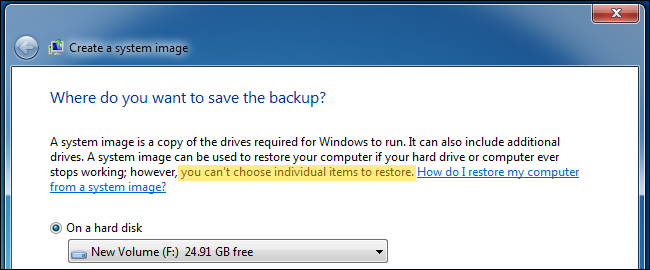
Windows 7’s backup control panel has the ability to create full system image backups. While Windows says you can’t restore individual files from these backups, there’s a way to browse the contents of a system image and extract individual files.
System image backups are meant for restoring an entire system. If you want to easily restore individual files, you should use another type of backup – but you don’t have to restore an entire system image to get a few important files back.
Mount the System Image
First, open the Disk Management application – type Disk Management into the Start menu and press Enter to do so.


Click the File menu in the Disk Management window and select Attach VHD.


Click the Browse button.


Locate the system image backup file, which will have the .vhd file extension. System images are saved in the following location:
[Drive Letter]\WindowsImageBackup\[Computer Name]\Backup [year-month-day] [hours-minutes-seconds]
For example, if you backed up to drive F:\, you’ll find the backups inside F:\WindowsImageBackup\.


Extract Your Files
The mounted VHD system image will appear as a new drive letter in your Computer window. Select Open folder to view files when the AutoPlay dialog appears.


You can browse the contents of your system image as if it were another drive on your computer. For example, your personal files from the system image backup will be located under [drive letter]:\Users\NAME. You can copy and paste them to another drive to extract them from the backup.


Unmount the System Backup Image
Once you’re done copying files from the backup, right-click the “Disk” box that corresponds to the VHD in the Disk Management window and select Detach VHD.


Ensure you don’t enable the Delete the virtual hard disk file after removing the disk check box or your system image backup will be deleted!


Got Feedback? Join the discussion at discuss.howtogeek.com
Comments (19)
Chris Hoffman is a technology writer and all-around computer geek. He's as at home using the Linux terminal as he is digging into the Windows registry. Connect with him on Google+.
- Published 10/2/12


excellent advice!
your argument is invalid as i have 7zip. :-)
7 zip works just fine
Yes – this is an incredibly useful technique.
bob Cabbage – troll somewhere else. No one made an argument – they offered a very useful technique. If you do not find it useful, move on.
Cool, this can be useful.
This is exactly what I have been looking for. How did you know?
Excellent. great article
this is very much helpful ..
Great with morning coffee. Better than reading EMAIL.
Great & useful tool, if there’s a will there’s always a way.
Chris:Do you mind if I publish this article with translating into my language with mentioning the source of course?
I would be thankful..
Jungle: Bob alerted comment readers to a feature of a very common piece of software, accomplishing the same goal. Some people revel in memespeak. If you don’t like it, move on.
@ Jungle Boi : Yes, do everyone here a big favor and move on !!
nice info HTG…
Why doesn’t Microsloth tell us these things?
Yes thanks!!
absolutely brilliant advice…
thanks….
very enlightening info…..
An easier way is to use Acronis. Make a full back up on an external hard drive and you can browse the whole system. I make a complete backup of my PC and take it with me when I want to use my laptop abroad. Everything easily accessiible.
Bernard, Vernon, BobCabbage, and Thomas.
Could one of you tell us how to use Acronis or 7Zip to extract a single file from a Windows 7 Image Backup? I don’t think it can be done but I would like to be proven wrong.