SEARCH

How-To Geek

How to Change Your Keyboard Layout in Windows 8

image

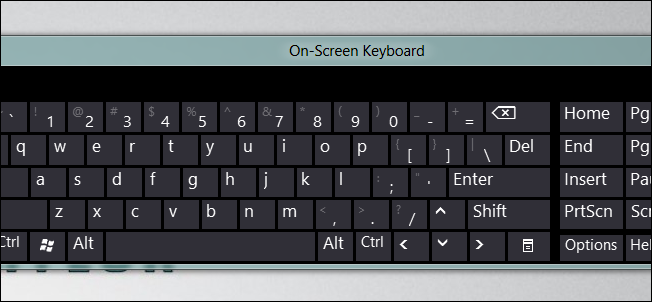
There is a small change to the Control Panel in Windows 8 that involves splitting the Region and Language applet into two separate applets. This makes changing your keyboard layout a little more tricky than previous versions of Windows.

Changing Your Keyboard Layout in Windows 8

The first thing we need to do is launch the classic Control Panel, you can do this by pressing the Win + R keyboard combination and selecting Control Panel from the context menu.

To save a few clicks, switch to the Small icons view.

Then go ahead and select the new Language option.

On the right-hand side you will see an options hyperlink, click on it.

It is over here that you will be able to add and remove keyboard layouts.

That’s all there is to it.

Don't show again X

Don't Upgrade to Windows 8 Until You Read This Book!

Windows 8 can be confusing, but our comprehensive guide will teach you everything the easy way.


There are over a thousand screenshots and pictures to walk you through everything there is to know about Windows 8, and it's written in the classic How-To Geek style that you know and love.


Get Your Copy Now  

Comments (5)

  1. arrietty7

    I use Keytweak, a shareward program. There are several others but most display the standard keyboard and Keytweak has an option to go into the learning mode, just press the key you want to change, and change it. easily done, easily undone and works great for hybrid keyboards such as are sold in Canada that have extra keys that I not only don’t use, they get in the way.

  2. Salim

    You wrote “… you can do this by pressing the Win + R keyboard combination and selecting Control Panel from the context menu….”

    Correction: Win + R will open Run dialog box. You need to press Win + X to open Power user shortcut menu (Device Manager, Control Panel, Command Prompt etc.) and then you can select Control Panel from it.

  3. Rusty Gates

    @Salim is correct.

  4. Cass

    In control panel you don’t need to change the view, just type language in the search box.

  5. JohnM

    if you don’t know these shortcuts (Win + X), and want to try through the metro interface, you just get stuck, no way to change it;
    this OS is so not thought out, it is supposed to be user friendly? it’s more confusing to new users than any of the previous Windows OS versions…

Taylor Gibb is a Microsoft MVP and all round geek, he loves everything from Windows 8 to Windows Server 2012 and even C# and PowerShell. You can also follow him on Google+

  • Published 08/13/12

RECOMMENDED POSTS