
Quick Links
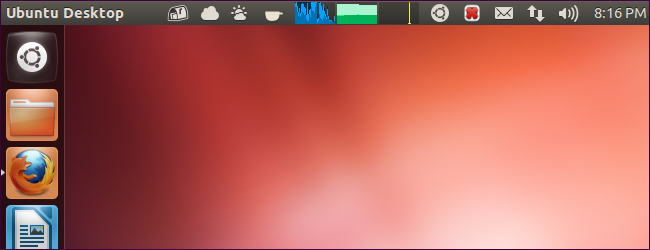
If you’ve used Ubuntu a while, you might remember GNOME applets – icons that sat on your panel and gave you access to controls and information. If you miss panel applets, try installing third-party indicator applets for Ubuntu’s Unity desktop.
There are a wide variety of indicator applets available for Unity, most of which aren’t available in Ubuntu’s default software repositories. The commands to install the indicator applets provided here were tested on Ubuntu 12.04.
After installing an indicator, you may have to search for it and activate it from your Dash, launch it with a command, or log out and log back in. This behavior depends on the indicator.
Weather
The weather indicator applet provides constantly updating weather information right on your panel. Install it with the following command:
sudo apt-get install indicator-weather
Launch the Weather indicator from the Dash after installing it.

System Load / Performance
The system load indicator shows you graphs of your system performance on your panel – like the old GNOME System Monitor applet used to. It shows a graph of your CPU activity by default, but it can show graphs for more than one type of resource at a time – from its preferences, you can enable graphs for network activity, memory, and other system resources.
sudo apt-get install indicator-multiload
Launch this indicator from the Dash after installation.

CPU Frequency
The CPU frequency scaling indicator shows you the current speed of your CPU and lets you control its policy – for example, you can force a certain CPU speed, enable power-saving mode, or enable high-performance mode.
sudo apt-get install indicator-cpufreq
Launch the indicator by running the following command after installing it:
indicator-cpufreq

Ubuntu One
If you use Ubuntu One, you might want an indicator applet that shows you Ubuntu One’s status – including your current file transfers and available space – without having to open Ubuntu One’s configuration window. The unofficial Ubuntu One indicator provides this information. Install it with the following commands:
sudo add-apt-repository ppa:rye/ubuntuone-extras
sudo apt-get update
sudo apt-get install indicator-ubuntuone
Log out and log back in. The indicator will automatically start.

Classic Menu
The classic menu indicator provides a classic, GNOME 2-style menu on your panel in Unity. Install it with the following commands:
sudo apt-add-repository ppa:diesch/testing
sudo apt-get update
sudo apt-get install classicmenu-indicator
Launch ClassicMenu Indicator from the Dash after installing it.

Recent Notifications
The recent notifications indicator provides a list of recent notifications that Ubuntu has shown to you – anything that came through the notification daemon appears here. You’ll be able to view all your recent notifications, even if you were away from your computer when they appeared.
sudo add-apt-repository ppa:jconti/recent-notifications
sudo apt-get update
sudo apt-get install indicator-notifications
Log out and log back in. The indicator will automatically appear.

Touchpad
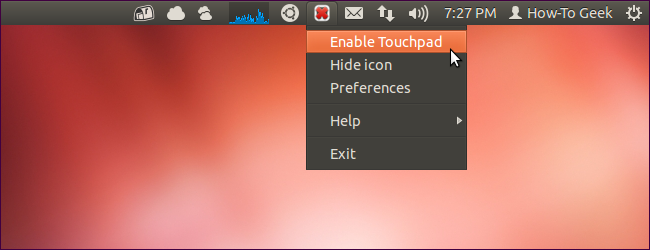
The touchpad indicator allows you to easily disable and enable your laptop’s touchpad -- right from the panel. Run the following commands to install it:
sudo add-apt-repository ppa:atareao/atareao
sudo apt-get update
sudo apt-get install touchpad-indicator
After installing the indicator, launch it from your Dash.
Hardware Sensors
The hardware sensors indicator shows you information from your system’s hardware sensors, such as the temperatures of your system’s hardware and the speed of its fans. Install it with the following commands:
sudo add-apt-repository ppa:alexmurray/indicator-sensors
sudo apt-get update
sudo apt-get install indicator-sensors
Launch the indicator from the Dash after installing it.

Caffeine
The caffeine indicator allows you to prevent Ubuntu from going to sleep. For example, this may be useful if you’re watching videos in an application that doesn’t automatically inhibit Ubuntu’s sleep behavior. Use the following commands to install it:
sudo add-apt-repository ppa:caffeine-developers/ppa
sudo apt-get update
sudo apt-get install caffeine
Launch Caffeine from the Dash after installing it.

Keylock
The keylock indicator applet shows you whether your caps lock, num lock, or scroll lock keys are on. Use these commands to install it:
sudo add-apt-repository ppa:tsbarnes/indicator-keylock
sudo apt-get update
sudo apt-get install indicator-keylock
Launch Indicator-Lockkeys from the dash after installing it.

Do you use another useful indicator applet? Leave a comment and let us know about it.