How-To Geek
How to Clean Up Your Messy Windows Context Menu with CCleaner

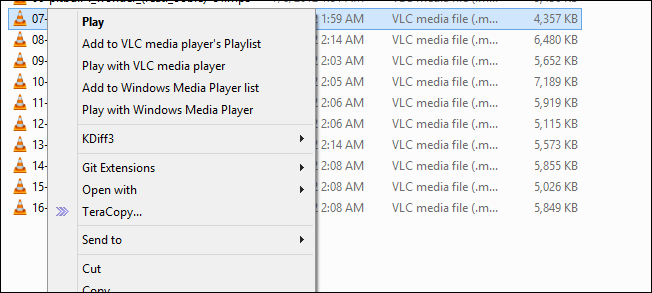
Lets face it, one of the messy sides of Windows is its right-click context menu system which seems to get more cluttered every time you install a new program. Here’s how to fix that, the easy way.
Cleaning Your Context Menu With CCleaner
Head over to the Piriform website and download the free version of CCleaner.


Once downloaded, you will need to run through the install wizard which is a next, next, finish process.


When you first fire up CCleaner you will see a Tools section on the left hand side, that’s where we will be heading.


On the right hand side, you will need to head into the Startup section and then click on the Context Menu.


You will now see all of the shell extensions that are registered on your system, after selecting one you have the option of either deleting it for good, or just disabling it incase you wish to re-enable it at a later stage.


That’s all there is to it.
Got Feedback? Join the discussion at discuss.howtogeek.com
Comments (24)
Taylor Gibb is a Microsoft MVP and all round geek, he loves everything from Windows 8 to Windows Server 2012 and even C# and PowerShell. You can also follow him on Google+
- Published 07/13/12


Thanks!
The problem is sometimes you NEED so many entries in the context menu. Do you know of some software to create folders in it, for example to group WinAmp/VLC/WinRAR entries?
Regards from Spain.
I don’t see a context menu tab in CCleaner when I get to the startup section. I am going to CCleaner website right now to see if it is because I have an old version. thanks for the tip – I would like to use it if I can.
I didn’t know that Ccleaner had this feature :) Thanks! :D
nice
Neat. I never know there’s something like this in CCleaner. No ‘Context Menu’ Tab in ver 3, and I never check it after I update to 3.19. So I need to update again? I only have 3 tabs. Windows,Internet Explorer, and Scheduled Task.
From the CCleaner Release notes:
v3.20.1750 (25 Jun 2012)
- Added Windows Explorer Context Menu management to Startup tool.
So it looks like you’ll need the most current version to get the Context Menu edit functionality…
Thanks Piriform – extremely useful, much easier than Shellex and registry hacks. Also the new schedule task manager is useful. Nice of the company to include a Skip UAC task for the program. Gives insight as to other often repeated UAC screens can be avoided without turning off UAC.
Thanks
Pro tip! MUCH quicker/easier than any other method to solve an annoying problem, props to you and to Piriform.
Awesome. Now, how can I clean out the > New menu? I have sooooo many filetypes in there, I just want to get rid of most of them. Same for the > Send To, if possible? Thanks.
To Add & Remove Shortcuts to the SendTo Menu in the RightClick Context Menu
C:\Users\*UserName*\AppData\Roaming\Microsoft\Windows\SendTo
Additionally Add new Folders to Categorize Shortsuts like Media, Tools, etc… in the SendTo Folder & move the Shortcut Files to the Corresponding Folder
eg:C:\Users\*UserName*\AppData\Roaming\Microsoft\Windows\SendTo\Media\VLC media player.exe
this will Open the Media files in VLC if you
//Awesome. Now, how can I clean out the > New menu? I have sooooo many filetypes in there, I just want to get rid of most of them. Same for the > Send To, if possible? Thanks.//
Try Right Click Enhancer Portable – http://www.softpedia.com/get/PORTABLE-SOFTWARE/System/System-Enhancements/Right-Click-Enhancer-Portable.shtml
Bless you – I have the new version, but had no idea this neat little goody had been added. CCleaner is such an amazing program, especially for free!
thanks for the tip.
do you know why “Send to” context menu so slow on winxp netbook? Disabled some entries there by setting the link files’ attributes to read-only and hidden.
Haven’t updated it since purchase in 2009, but after installing some updates lately, the computer runs so slow, it’s hardly usable. It now takes 1-2 minutes to show icons on the desktop and if I click Start > Programs, it takes a few minutes before the program list displayed. According to sysinternal’s Task manager, the cpu load is almost 100% even if I just browse files on windows explorer. What could’ve gone wrong?
i go to the builds page at piriform and download the slim version of their software. the slim version has less with it so i don’t have to worry about the tool bars and it takes up less room.
i used to use ccleaner from version 1, but this is the first time i see this option.
thank you
hi
change my passowrd
It doesn’t see/clear all items.
Nice info
Russell is right. I’ve been using this for a while now, and it doesn’t show all of them. Still very handy, and maybe the future releases will have improvements.
Too bad you have to install Chrome if you want CCleaner. That’s a sure way to limit your audience. Declined, thank you.
I wish you had pointed this out in your article.
@Michel I am not sure what build of CCLeaner you are installing but I did not have to install anything else.