SEARCH

How-To Geek

How to Access the Control Panel in Windows 8

win_8_control_panel_all

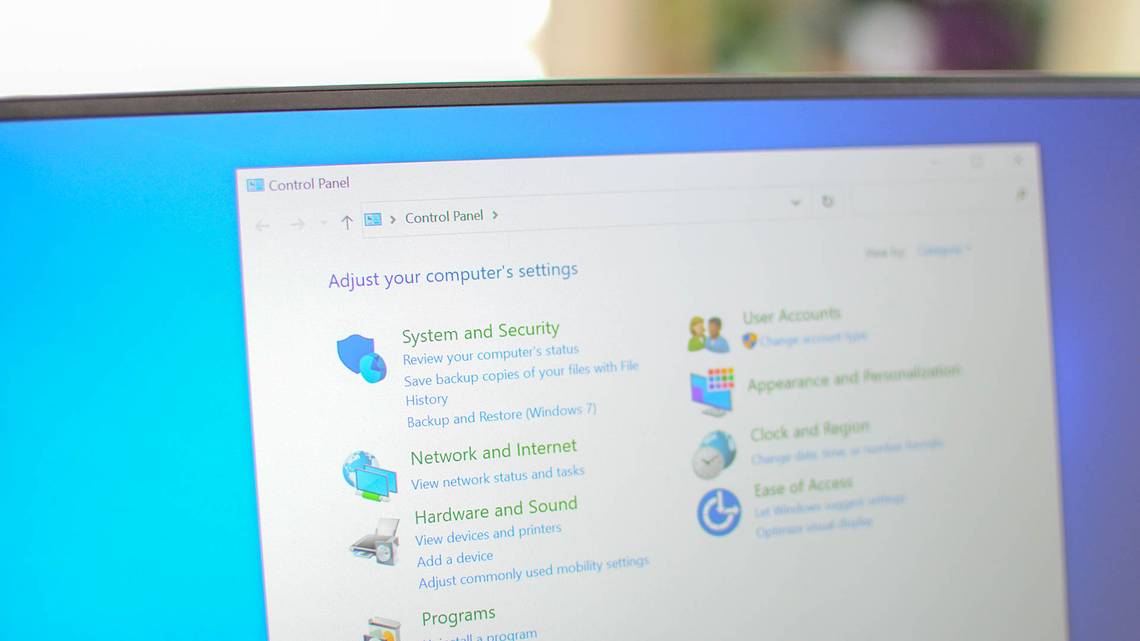
With the old Windows Start menu, you could add the Control Panel as a menu or a drop-down list. With Windows 8, you can pin the Control Panel to the Start Screen and taskbar but first you need to know where it is.

One of the chief complaints about Windows 8 (or any new version of Microsoft’s operating system) is “where did such-and-such go?” With Windows 8, when MS removed the Start button and Start Menu, it threw a lot of people for a loop. Because the Start Menu was like an old familiar hang out; one of those places that no matter how it changed over the years, it was a fairly reliable place to find stuff whether it was your Documents folder, Devices, Printers, the ability to search your programs and files, and of course, the Control Panel.

There are about four ways (so far) to access the Control Panel in Windows 8 Preview Release.

Method 1: The Old Stand-By – Search for it …

Windows 8 introduces a “Charms” bar accessible from the top or bottom right “hot corner”. Simply drag the mouse pointer to either corner until the five Charms appear along the right edge of the screen. Drag the mouse pointer and click on Search (you can access the Search charm through the keyboard shortcut Windows logo + Q).

The search pane will pop out and from there you can type Control Panel and select it from the results to the left. Alternatively, you can simply begin typing from the Start Screen.

Method 2: The Ribbon aka Windows Explorer

In Windows 7, you can open Windows Explorer click on Computer and then Open Control Panel on the toolbar.

In Windows 8, you can also click on Open Control Panel but the toolbar has been replaced by the Ribbon as found in Office 2010.

Method 3: More Charms – Settings

Access the Charms bar once more. Drag the mouse pointer to and click on Settings. The Settings pane will pop out and you can then choose Control Panel.

Note: To this settings option is only available from the desktop Charms setting.

Method 4: The Easiest Way – Right-click the Start “Button”

Last and perhaps the easiest way, right-click on what was formerly known as the Start button in the bottom left corner (now a hot corner), which allows you to switch between the Desktop and Start Screen. Right clicking brings up a context menu with wide array of options. The Control Panel is the fifth from the bottom.

And there you have it, four sure ways to access the Control Panel in Windows 8 Preview Release. Of course, some of these could change before it is released to manufacturers. We’ll be sure to keep you apprised of any of these changes if or when they happen.

Do you have an another way of opening the Windows 8 Control Panel? What is your preferred method? Let us know in the comments.

Don't show again X

Don't Upgrade to Windows 8 Until You Read This Book!

Windows 8 can be confusing, but our comprehensive guide will teach you everything the easy way.


There are over a thousand screenshots and pictures to walk you through everything there is to know about Windows 8, and it's written in the classic How-To Geek style that you know and love.


Get Your Copy Now  

Comments (21)

  1. Tim S

    ..or Windows + X brings up the same menu. Then hit p for panel :)

  2. Markiz

    What a funny advice..

    First you give a very complicated way, and than you say:
    ” Alternatively, you can simply begin typing from the Start Screen”.

    Lol.

  3. zinc

    Just add the shortcut to the desktop so it’s always there…same way you can in Win7.

    Right-click desktop…”Personalize”…”Change Desktop Icons”…

    Add “My Computer” and your User directory as well.

  4. williamknight57

    Windows 8 looks less and less appealing everyday, they need to scrap it and start over

  5. mjgoulet

    I agree with williamknight57, Normally I can’t wait to get to Microsoft’s latest but this one is a step towards confusion and workarounds, Scrapping the beloved Start orb is a big mistake.

  6. pbug56

    Far better choice; don’t go to Windoze 8 MUTRO edition! Unless you have a toddler or puppy who love to play with little touch screens.

  7. Adolf von Wurttemberg

    IMHO, this is so “goofy”. As an old retired IT guy I do not like this pseudo, quasi cell phone interface for my computer. Am I atavisitc? Answer: “Yes!” Shall I use it in the future? Answer: “Yes!” Motto: go with the flow and roll with the punches. As the Greek philosopher wrote: “All is flux.” Final thought: “Sic transit gloria mundi.”

  8. Dennis

    If articles have to be written in order to find something so basic as the control panel in an operating system, then the system is doomed.
    I tried Windows 8 preview and couldn’t wait to get it off my computer.
    What is Microsoft thinking?

  9. Marlena

    Every few years “they” have to re – learn that one size does NOT fit all….*rolls eyes*

  10. stuart

    go to the start screen and right click an empty area. then click all apps at the bottom right and scroll across to system and click control panel :)

  11. Crapsandviche

    Win+R Type ‘Control Panel’ Enter

  12. Markiz

    Wow, the readership here is really hostile towards W8. You guys need to be more flexible.

  13. Carl

    As your method 1:The old Stand-By-Search for it, when Control Panel appears, Rt click, pin to task bar.

  14. Miss Andrea Borman

    Well in Windows 8 CP which I am still running you just set Windows Explorer to show all folders. And then you will see Control Panel in Windows Explorer. And then you can pin the shortcut to your desktop or Windows 7 start menu,if you have installed that with Classic Shell.And pin the Control panel shortcut to the Metro start screen. Andrea Borman.

  15. Keith

    control.exe

    works most everywhere

  16. coolalbert

    how can we fine games

  17. Baggins

    I love reading these articles and the negative comments accompanying them. It really takes me back to the days of Windows 95 when there were magazines full of articles on how to restore Program Manager as the default shell instead of Explorer and how to modify MSDOS.SYS and CONFIG.SYS/AUTOEXEC.BAT so you could choose whether to boot into Windows or go straight to a DOS prompt.
    I don’t know whether Metro will work out as well as MS hopes, but us “old timers” remember people being just as apprehensive about this new-fangled “Start” button idea. Fer cryin’ out loud- Microsoft had to put a video(okay- it was closer to a slideshow) into Windows 95 that came up the first time you ran it just so people could figure out how to use the thing. If it’s that complicated, how could it ever catch on?! ;)

  18. Ian

    I had no idea it was “hard” to find.

    I have been using option 3 – it is simply in the settings charm
    In addition it is in Windows Explorer Ribbon similar to how it is in Windows 7 but is easier to find and it is accessible by right clicking in the bottom left hand corner instead of left clicking in the bottom left hand corner.

    And this is a upgrade / company killer how?

  19. AC

    While sitting at the Metro UI: Type “co” and hit Enter. That simple.

    If you have some other apps starting with “co”, you may have to type an additional letter or two to hit it, but it works. I’ve been using this trick with the start menu search ever since Vista. Like right now, if I want to open Malwarebytes really quick, I hit the windows key, “mal”, and Enter. Bam, it’s open.

  20. Stephen Gyves

    As if we expected a whole chain of positive comments. :)

  21. shahriar

    hey, dude. nice tricks.

Living just north of the border, in what he calls Practically, Mexico, Matt spends his days scouring the latest tech news, writing e-books, and attempting to create the perfect breakfast burrito.

  • Published 06/12/12

RECOMMENDED POSTS