
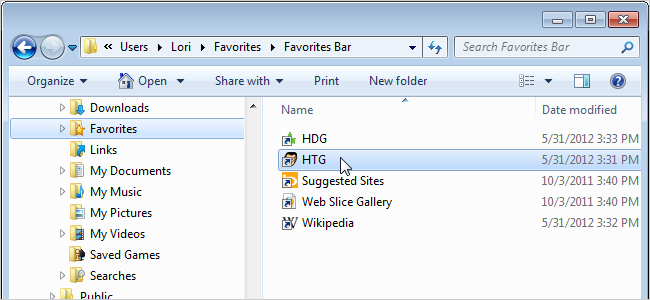
By default, in Windows 7, Favorites for Internet Explorer are saved in the C:\Users\[username]\Favorites folder. However, you may want them in a different location so they are easier to backup or even on a drive where Windows is not installed.
This article shows you how to change the location of the Internet Explorer Favorites folder in two ways: by changing the properties of the Favorites folder and by making changes to the registry.
Changing the Favorites Folder Properties
To change the location of the Favorites folder by changing its properties, open Windows Explorer and navigate to the current location of the Favorites folder (most likely the default, C:\Users\[username]\Favorites). Right-click on the Favorites folder in the right pane and select Properties from the popup menu.

Click the Location tab on the Properties dialog box. Then, click Move.
NOTE: You don't have to use the Move button to change the location of the Favorites folder. You can type the full path to the new location of the Favorites folder in the edit box.

If you used the Move button to change the location, select a new location on the Select a Destination dialog box and click Select Folder.

Click OK to accept your change and close the Properties dialog box.

If you typed in a full path, but haven't created the folder yet, the following dialog box displays. Click Yes to create the folder.

You can automatically move all the subfolders and links from the old Favorites location to the new location. The following dialog box displays asking if you want to move all the files. It is recommended that you do move all the files, so click Yes.

All the folders and files that were in the original Favorites location are not located in the new location.

NOTE: If you used a name for the new folder other than Favorites, the name "Favorites" still displays in Windows Explorer. However, if you click in the address bar, you'll notice that the name you assigned is still there as the path to the folder.

Changing the Registry
To change the location of the Favorites folder using the registry, enter "regedit" (without the quotes) in the Search box on the Start menu. When the results display, click regedit.exe or press Enter when it's highlighted.

If the User Account Control dialog box displays, click Yes to continue.
NOTE: You may not see this dialog box, depending on your User Account Control settings.

Navigate to the following key on the left.
HKEY_CURRENT_USER\Software\Microsoft\Windows\CurrentVersion\Explorer\Shell Folders
Double-click the Favorites item on the right.

Enter the full path to the new location for the Favorites folder in the Value data edit box and click OK.
NOTE: If you use the registry method to change the location of the Favorites folder, you must manually create the new folder.

Next, navigate to the following key on the left.
HKEY_CURRENT_USER\Software\Microsoft\Windows\CurrentVersion\Explorer\User Shell Folders
Double-click the Favorites item on the right, and enter the full path for the new location for the Favorites folder in the Value data edit box. Click OK.

Close the Registry Editor by selecting Exit from the File menu.

NOTE: When using the registry method to change the location of the Favorites folder, you must manually copy the subfolders and files from the original Favorites location to the new location.