
If your computer has started to slow down, there are many options for speeding it up. Below, we show you some of the best tips for speeding up your PC, some from previous HTG articles and some described here.
Turn off Startup Programs
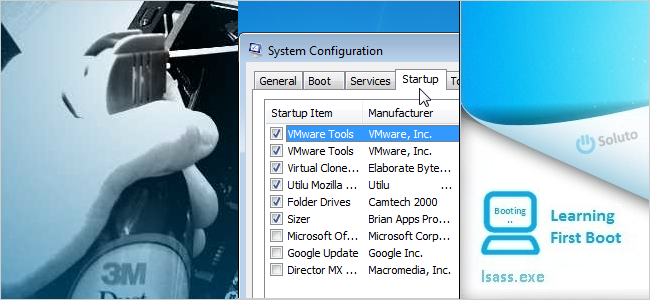
When you install a program in Windows, it may add a small program that runs when Windows starts. After installing a lot of software, your boot up process could become slow. If there are programs you don't use much, they probably don't need to start every time Windows does. You can disable startup programs manually or use the free tool CCleaner.

Clean Up Unnecessary Files on Your Computer
As you use your computer, files collect in all kinds of places. Windows and programs running in Windows create temporary files and log files. Files you have deleted may collect in the Recycle Bin, if you don't empty it often. When you browse the internet, browsers create temporary files, sites put cookies on your computer, and the download history and form history grows. CCleaner can help you clean up your computer. You can set up CCleaner to automatically run on a schedule and you can also create a shortcut to run CCleaner quickly and silently.

Schedule a Task to Perform Disk Cleanup
Windows provides a built-in Disk Cleanup tool that removes old files and temporary files to help you reclaim hard disk space and possibly speed up your PC. It's a good idea to run the Disk Cleanup tool on a regular basis, such as weekly or monthly, depending on your computer usage. You can use the Task Scheduler in Windows to set up a task to run the Disk Cleanup tool on a set schedule.

Remove Malware, Spyware, and Adware
If you have malware, spyware, or adware on your computer, that can affect its performance. The articles below describe some tools that help you get rid of malware, spyware, and adware and also how to get rid of fake antivirus applications that are actually viruses in themselves.

- How Does Spyware, Malware or Crapware Get on My Computer?
- Remove Stubborn Malware with SuperAntiSpyware
- SUPERAntiSpyware Portable is the Must-Have Spyware Removal Tool You Need
- Remove Malware Quickly with Malwarebytes' Anti-Malware
- How to Remove Win 7 Anti-Spyware 2011 (Fake Anti-Virus Infections)
- How To Remove Antivirus Live and Other Rogue/Fake Antivirus Malware
Turn off Windows Features
By default, Windows enables a lot of features that you most likely don't use and take up valuable resources on your computer. However, these features can be disabled. There are many ways to disable Windows features. We have previously written about the 50 best ways to disable built-in Windows features you don't want or need.

Disable the Indexing Service in Windows
The Search Indexing service in Windows scans through the files and folders on your system and records information about them in an index file to speed up the search process. However, this also consumes resources on your system and can slow it down. If you don't do a lot of searching through files and folders, you can turn off the indexing service to free up some resources and speed up your computer.
Open the Start menu and enter "services.msc" (without the quotes) in the search box. Press Enter or click on the services.msc link when it displays.

In the right pane on the Services dialog box, scroll down until you find the Windows Search service. Right-click on it and select Properties from the popup menu.

The Windows Search Properties dialog box displays. Select Disabled from the Startup type drop-down list. Click OK to accept the change and close the dialog box.

You are returned to the Services dialog box. Select Exit from the File menu to close it. Reboot your computer to finalize the change.
Reduce the Delay of the Start Menu Display
By default, there is a delay before the Start menu and its submenus display. If you want to make the Start menu open faster, you can change a key in the registry to accomplish this.
Open the Start menu and enter "regedit.msc" (without the quotes) in the search box. Press Enter or click on the regedit.msc link when it displays.
If the User Account Control dialog box displays, click Yes to continue.
NOTE: You may not see this dialog box, depending on your User Account Control settings.
In the tree in the left pane of the Registry Editor, navigate to the HKEY_CURRENT_USER\Control Panel\Desktop key. In the right pane, scroll down until you find the MenuShowDelay data value. Right-click on the name and select Modify from the popup menu.

In the Value data edit box on the Edit String dialog box, enter a new value between 0 and 4000. This indicates how many milliseconds it takes for the Start menu and any submenus to display. We don't recommend you use 0 as the value. It might make it hard to navigate through the menus. Click OK to accept your change.

Select Exit from the File menu to close the Registry Editor. Reboot your computer to apply the change.
Fully Uninstall Unused Programs
Sometimes, when you uninstall a program, remnants are left behind that the uninstaller doesn't remove. If you install and uninstall a lot of programs, these files can accumulate. How-To Geek shows you how to use Revo Uninstaller to completely uninstall a program or utility from your system.

Change the Number of Recent Items Shown on the Windows 7 Start Menu
If you have a lot of recent documents displaying in the Recent Items menu on the Start menu, it can slow down access to the menu. It is a quick and easy task to change the number of items that display on the Recent Items menu.

Delete Unnecessary Items from the Send To Menu
Some programs may add items to the Send To menu when you install them. If so, your Send To menu may become slow to access. However, you can easily customize the Send To menu in Windows and remove items you don't use or even disable the Send To menu completely.

Limit the Number of Items in Each Folder
If you have lots of files in a single folder, it can slow down Explorer. It's best to create multiple folders and spread out the files among the folders.

Thoroughly Clean Your Computer
The fan in your computer that draws in air to cool the components may become clogged with dust, pet hair, and other forms of dirt. This can cause your system to overheat and run sluggishly and maybe even eventually break down. How-To Geek shows you how to thoroughly clean the inside of your desktop computer.

Install Programs into a Virtual Machine
Installing programs in a virtual machine to test them using a virtualization program like VirtualBox or VMware Workstation or Player keeps your host machine trim and fast and can prevent it from slowing down. When you uninstall them, any remnants are left in the virtual machine, not on your host machine (although, you can also use Revo Uninstaller, as mentioned earlier in this article, to uninstall software completely). Also, you can test how the program itself, when running, affects system resources.

Now, you can be faster and more efficient when working or goofing off!