
Quick Links
Wi-Fi Analyzer for Android is the complete package. Not only will it show you the channels used by nearby wireless networks on a slick graph, it'll recommend the ideal channel to reduce interference on your wireless network.
Once you've selected the ideal channel, you can flick over to the signal strength meter. With the meter in the palm of your hand, you can walk around to analyze your coverage area, find dead spots and identify interfering objects.
Getting the App
Farproc's Wi-Fi Analyzer is available for free from the Android Market. It's ad-supported, but you can disable the advertisements from the app's settings screen.

Switching Screens
This app has more than one trick up its sleeve. You can open the menu and tap View to view a list of screens, or just flick your finger left and right to switch between them.

Channel Graph
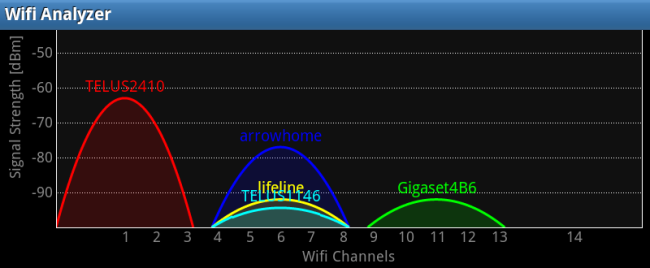
Once you fire up the app, you'll see the channel graph. Wi-Fi Analyzer graphs each nearby wireless network's signal strength and channel and displays the information on an easy-to-understand graph.

Here, TELUS2410 has the highest signal strength in our area, but other nearby networks are interfering with it. Note that each network is also interfering on adjacent channels. We'd want to set our network to use an entirely free area, like Gigaset4B6's owners have.
You can also use the channel graph to find the ideal public access point. Just fire up the app and identify the open wireless network with the highest signal strength and least interference.
Channel Rating
On the channel rating screen, Wi-Fi Analyzer cuts through all the technical information and tells you exactly what to do. First, you'll have to tap the message at the top of the screen and select your access point.

Once you have, Wi-Fi Analyzer will rate your current Wi-Fi channel and recommend you better ones.

Wi-Fi Analyzer is telling us that our current network gets 7/10 stars -- as we can see from the rating list, we're using the worst possible channel in our area. We'll want to switch to channels 1, 11, 12, 13 or 14.
Signal Meter
The Signal Meter screen allows you to walk around and measure the your wireless network's signal strength in different places. Similar to the Channel Rating screen, you'll have to tap the message and select your wireless network.

After you do, you can walk around and watch the meter move. Use this to detect dead zones and identify interference. If a certain area of your building isn't fully covered, you may want to move your wireless router to maximize your coverage area. Large, metal objects can also cause interference.

If your screen keeps turning off while you do this, open the app's settings screen and enable the Keep Screen On option under UI Settings.
Time Graph & AP List
The time graph screen graphs each network's signal strength over time, but doesn't show any channel information.

The AP list screen shows the same information as the channel graph, but in list form.

Changing Your Wi-Fi Channel
Now that you know the ideal channel for your wireless network, you'll have to set it on your router's setup page. The exact process is different for every model of router -- check out our guide to changing your router's Wi-Fi channel if you don't have your router's manual handy.
You may have to look beyond the standard wireless setup page -- on my current router, I found the option on an Advanced Settings page.

Once you're done, you can fire up Wi-Fi Analyzer again and examine the graph -- on channel 1, we're not longer experiencing interference from other wireless networks.

Farproc's Wi-Fi Analyzer may not have all the features of a commercial Wi-Fi analyzer, but it's the best you can do on your Android device. Why walk around with a laptop open, trying to stare at its screen and not trip, when you can have Wi-Fi Analyzer in the palm of your hand?